Password Manager (Vaultwarden)
Appcircle runs a self-hosted Vaultwarden instance — an open-source, Bitwarden-compatible password server — at https://pass.appcircle.io. You interact with it using the official Bitwarden client (browser extension or desktop app).
All work-related credentials must be stored here — never in Slack, email, or any other messaging channel.
Installation
Download and install the Bitwarden client for your platform from the official download page.
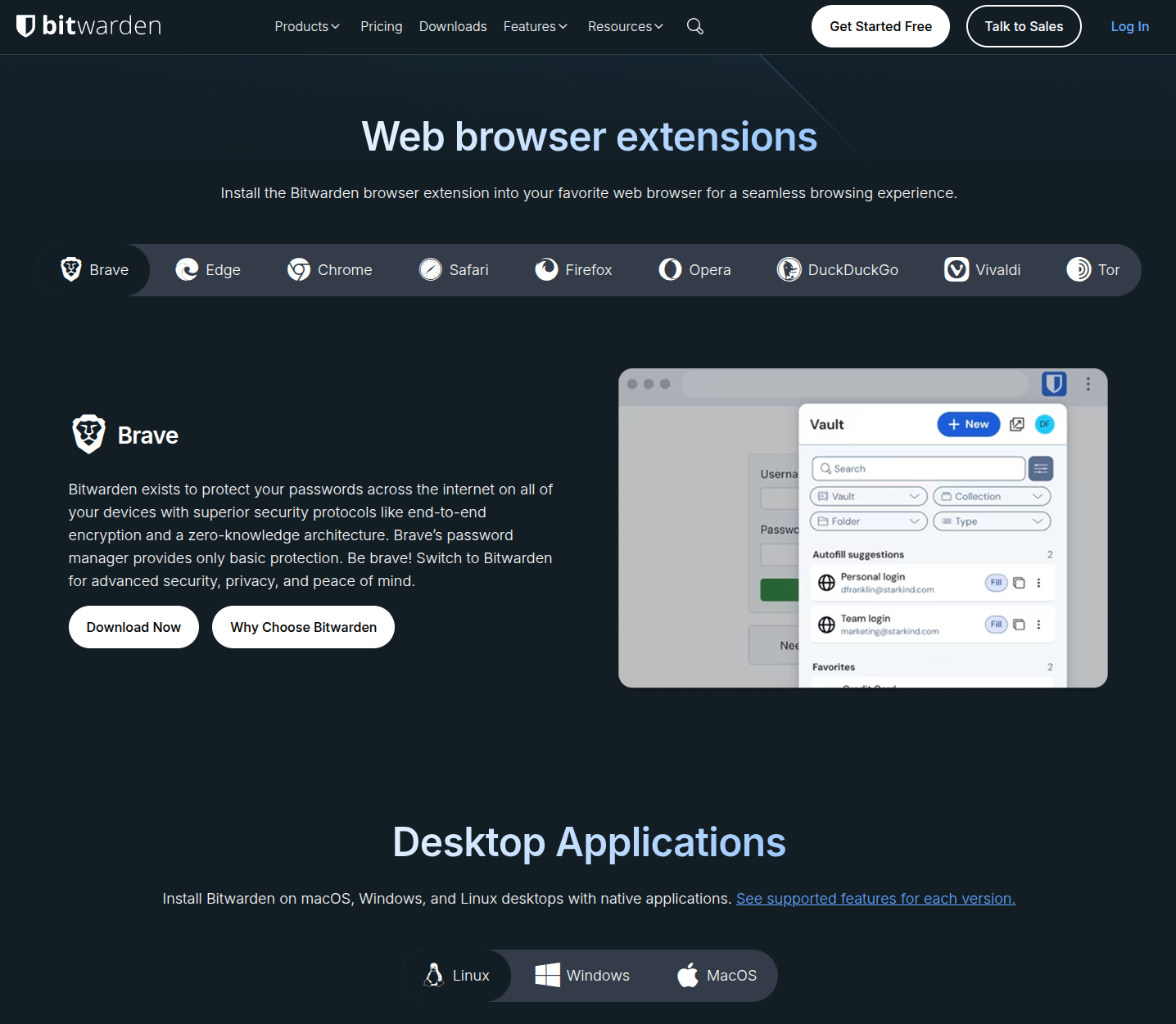
Available clients:
- Browser extension — Chrome, Firefox, Safari, Edge, Brave, and others
- Desktop application — macOS, Windows, Linux
Install at least the browser extension; a desktop application is optional but recommended.
First-time Setup
1. Switch to self-hosted
Before entering any credentials, change the server to Appcircle's self-hosted instance.
On the login screen click Accessing: bitwarden.com and select self-hosted.
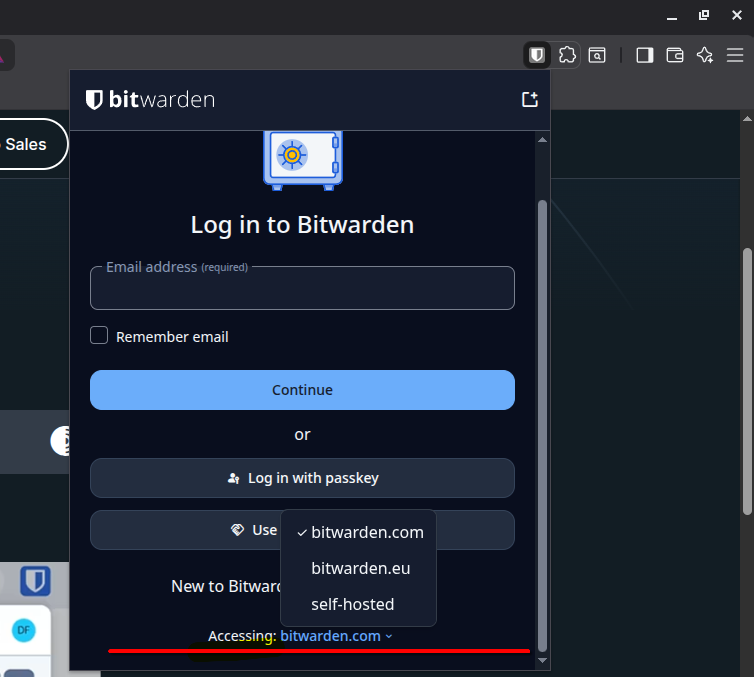
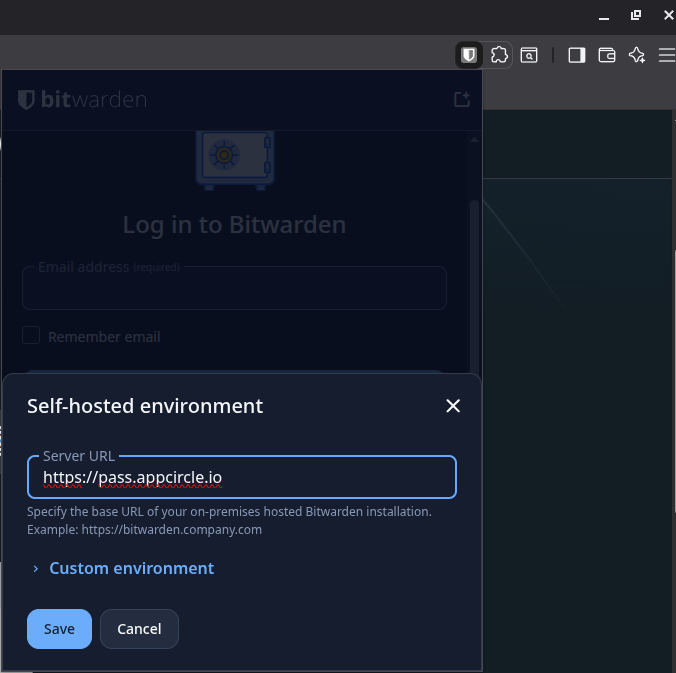
Enter the server URL and click Save:
https://pass.appcircle.io
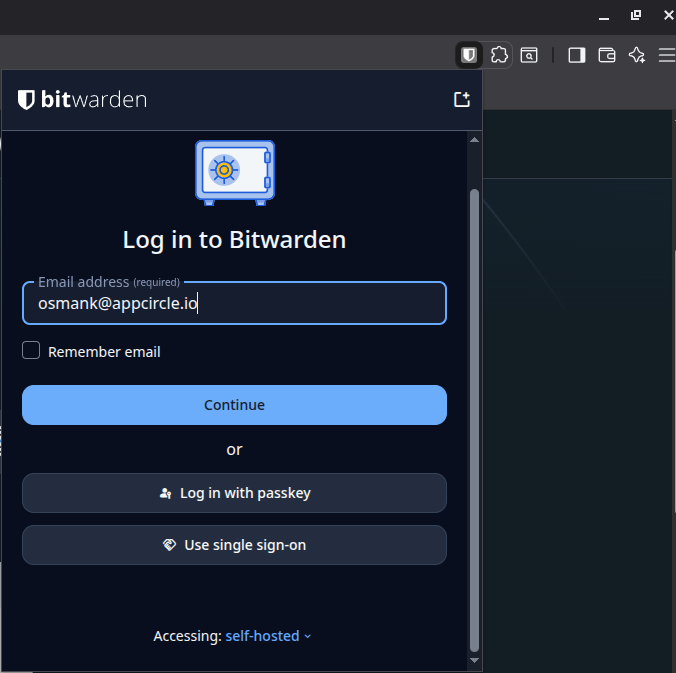
2. Sign in with SSO
Click Use single sign-on and authenticate with your @appcircle.io account.
3. Master password
On first login you will be asked to set a master password. This password is known only to you and cannot be recovered — store it somewhere safe outside Bitwarden (e.g., write it down and keep it secure).
Organization Invite
After logging in you will need an invite to the Appcircle organization. Invites are not sent automatically — contact Osman Kibar via Slack to request one.
Vault Structure
Once you join the organization you will see two vaults:
| Vault | Purpose |
|---|---|
| My Vault | Personal work-related credentials (accounts that belong to you individually) |
| Appcircle | Shared company credentials and service accounts |
Collections
Within the Appcircle organization, credentials are organized into team-based collections. Each team has two collections:
| Collection | Access | Examples |
|---|---|---|
<Team> |
All team members | Internal tools, non-critical service accounts |
<Team>/Privileged |
Team lead only | Credentials that affect multiple resources (Google Cloud, Proxmox, etc.) |
Example for the Platform team:
Platform— credentials accessible to all platform team membersPlatform/Privileged— high-impact credentials reviewed by the team lead
Sharing Secrets Securely
Never share passwords, certificates, SSH keys, or private keys over Slack, email, or Microsoft Teams.
Use Bitwarden Send instead:
- Open the Send tab in Bitwarden and click New text (or New file for binary content).
- Paste the secret or attach the file.
- Set a short Deletion date (e.g., 1 hour).
- Under Additional options, set Maximum access count to
1.
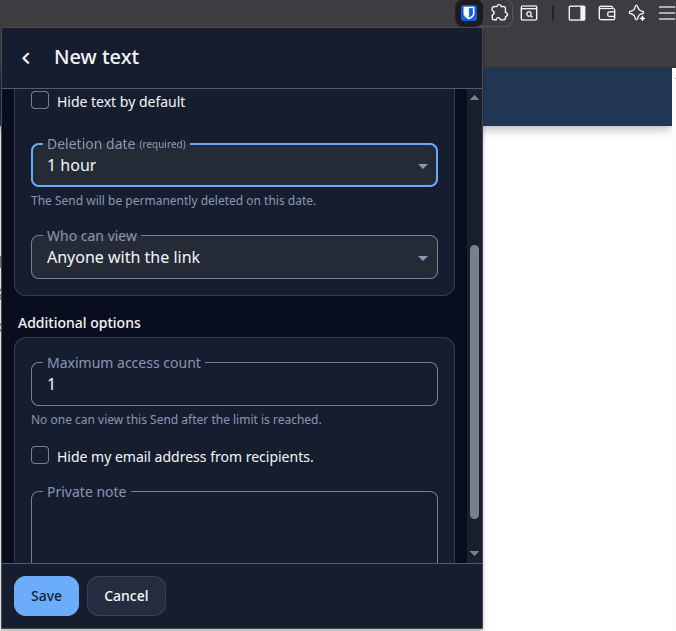
Sharing the generated link via Slack or email is fine — the secret itself never travels over those channels.
Warning
If you suspect the link was opened by someone other than the intended recipient before they could use it, treat the secret as compromised and rotate it immediately.